How to Upload an Email List to Mailchimp
Mailchimp is a valuable promotional tool to get information to your subscribers with updates about your business.
![[Featured image] Three colleagues stand in front of a clear board with sticky notes on it discussing how to upload an email list to MailChimp.](https://d3njjcbhbojbot.cloudfront.net/api/utilities/v1/imageproxy/https://images.ctfassets.net/wp1lcwdav1p1/1HlAGJ4izBGqDTe6TkkBSR/9922a1a60bacc8b4445b1231730edbac/Coursera_employees_3.jpg?w=1500&h=680&q=60&fit=fill&f=faces&fm=jpg&fl=progressive&auto=format%2Ccompress&dpr=1&w=1000)
Key takeaways
You can use the Audience dashboard in Mailchimp to upload your contacts and simplify your digital marketing campaigns.
Mailchimp’s free plan allows you to upload up to 500 contacts per month [1].
You can choose to build your email list in Microsoft Excel or Google Sheets, then save it as a .csv file before uploading it to Mailchimp.
You can export your contacts from Mailchimp to back up your contact list or upload it to another newsletter provider.
Learn how to upload an email list to Mailchimp to improve your digital marketing campaigns. If you’re ready to build your skills, consider enrolling in the Google Digital Marketing and E-commerce Professional Certificate. In as little as six months, you’ll have the opportunity to learn digital marketing fundamentals and measure marketing performance using analytics. By the end, you’ll have earned a career credential to add to your resume.
How to upload an email list to Mailchimp
Here are the steps you must take if you decide Mailchimp will be a better option than your current provider. You can also use this process if you have a list of new subscribers that you want to add to Mailchimp:
Prepare your file for import.
Save your file as a .csv.
Manage your Audience dashboard.
Start the file upload process.
Upload your file.
Organize your contacts.
Label your contact list.
Match your column information.
Review your import.
Let's take a closer look at each step.
1. Prepare your file for import.
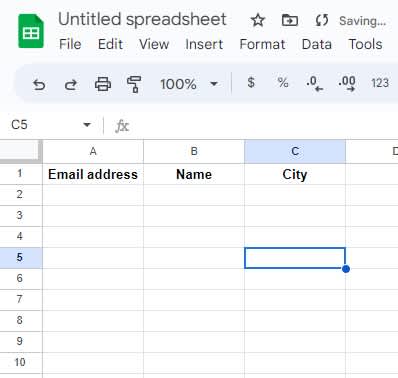
You’ll need to start with an email list in a file formatted for Microsoft Excel or Google Sheets. Check the file to make sure the email addresses and information you want to include are there and properly labeled. You’ll want headers on columns such as “Email address,” “Name,” and other important information. Mailchimp requires an “Email address” header, but the rest are optional.
Read more: Google Sheets Functions You Need to Know
2. Save your file as a .csv.
Prepare your spreadsheet and save it as a comma-separated values (CSV) file. You can do this by clicking the File > Download in Google Sheets. Google Sheets will automatically download the file onto your computer.
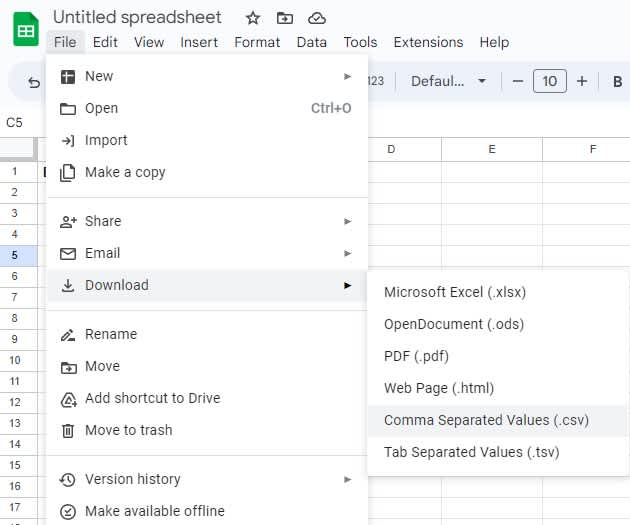
If you use Microsoft Excel, click File > Save As. In the save window, you’ll have the option to choose .csv as the file format.

3. Manage your Audience dashboard.
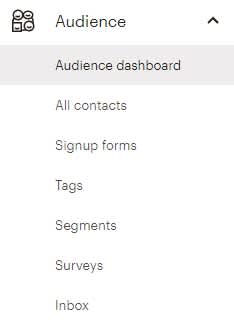
Sign in to Mailchimp, open the Audience drop-down menu, and click Audience dashboard.
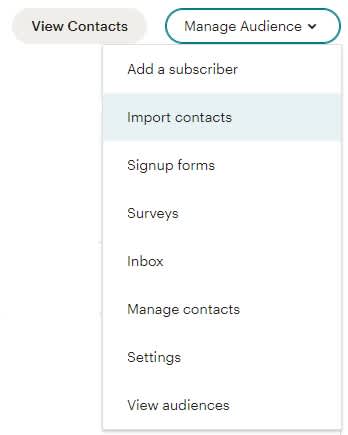
The top right corner of your Audience dashboard has a Manage Audience button with a drop-down menu where you can choose Import contacts.
4. Start the file upload process.
Mailchimp will prompt you to select how to add your contacts' information, such as your newsletter subscribers. Choose Upload a file and click the Continue button.

5. Upload your file.
Mailchimp will then direct you to upload your contacts. Click the Browse link, navigate to the file on your computer, select it, and click Open in the file selection window.
Mailchimp will add your file to the upload screen, and you can click Continue to Organize to move to the next step.

6. Organize your contacts.
When prompted to select a status to organize your contacts, select Subscribed from the drop-down list and click Continue to Tag.

7. Label your contact list.
You can create your own label for your contact list or choose from popular tags like “customers” or “staff” under popular tags. Create your tags, and click Continue to Match to complete the final steps.

8. Match your column information.
This page will display the number of contacts you have imported and allow you to verify that columns are correctly labeled, such as “Email address” or “Phone number."
Make sure this information is correct, and adjust the labels as needed. You can change labels by clicking on the pencil icon on the left side of each label or check the box on the right side of each label to include or exclude different columns.
When you’ve completed this step, click Finalize Import to move on.

9. Review your import.
Review your file information to ensure you have completed the steps to upload your file. Then, click Complete Import to finish the upload or Cancel Import to cancel the process.

You’ve successfully completed your import.

Factors to consider when uploading an email list to Mailchimp
You'll need to consider some factors as part of your process to upload your email list.
Mailchimp allows you to manage up to 500 contacts in your email list for free [1]. If your subscriber list exceeds this limit or you anticipate significant growth, you’ll need to upgrade to a paid plan.
You can also export your contacts from Mailchimp. Under the Audience menu, choose All contacts. A button labeled Export Audience will be at the top of your contact list. Choose this option to download a CSV file of your list of contacts. This is a good way to back up your contact list or upload it to another newsletter provider.

Explore digital marketing resources for your career
Join Career Chat on LinkedIn to stay updated on career trends and tips. Then, check out these resources to learn more about digital marketing:
Bookmark this page: Digital Marketing Terms Every Marketer Should Know
Build your knowledge: Curious About Digital Marketing? Read On
Watch on YouTube: Why Every Digital Marketer Must Learn AI
Accelerate your career growth with a Coursera Plus subscription. When you enroll in either the monthly or annual option, you’ll get access to over 10,000 courses.



Article sources
Mailchimp. “Mailchimp Pricing Plans, https://mailchimp.com/pricing/marketing/.” Accessed January 24, 2026.
Coursera Staff
Editorial Team
Coursera’s editorial team is comprised of highly experienced professional editors, writers, and fact...
This content has been made available for informational purposes only. Learners are advised to conduct additional research to ensure that courses and other credentials pursued meet their personal, professional, and financial goals.